
Good service support. I did try repair of 2007 model HPDV2520ee display issue. It was satisfactory and working fine now. Did help me out with a OS upgrade as well. Also got my acer 5332 power issue. Few components in the mother board was replaced and working fine now.
Very slow · hanging · boots in minutes · "hard disk crashed"
SSD and RAM upgrades
A laptop that takes minutes to boot and hangs on every click is usually waiting on an old hard disk. Moving Windows to an SSD is the single biggest speed-up a laptop can get. More RAM helps when you run many things at once. We tell you which one you need.
10am–8pm, Mon–Sat · Whitefield Main Road, opposite Dress Circle Mall · free pickup nearby
- M.2 NVMe / SATA
- 2.5-inch SATA
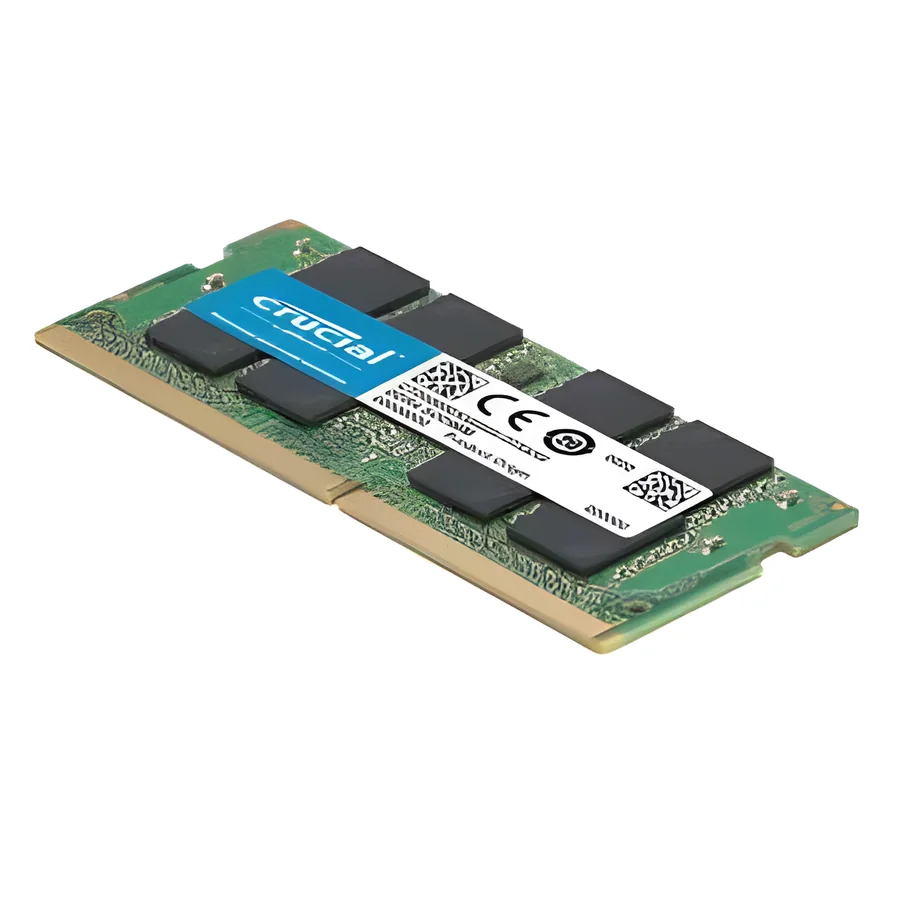
- SO-DIMM
Quick answer
If your laptop still has a spinning hard disk, an SSD makes it boot in seconds and open programs instantly; this is true even on machines eight or ten years old. If it already has an SSD but freezes when many tabs and apps are open, RAM is the limit. If it is slow and hot, the cooling is the problem, not the parts. We check all three before recommending anything.
Symptoms this covers
- Boots in two to five minutes; the disk light is on constantly
- "Very slow", "hanging", freezing when opening a browser
- "Hard disk got crashed", clicking sounds, or "no boot device found"
- Storage full, or "low memory" warnings
- An old laptop you would rather upgrade than replace
Likely causes, in plain words
- CommonMechanical hard disk as the system drive
- Hard disks are about twenty times slower than an SSD at the small reads Windows does constantly. The laptop is waiting, not broken. RAM or SSD: which helps you
- CommonNot enough RAM for how you use it
- 4 GB is not enough for a modern browser; 8 GB is the comfortable minimum, 16 GB for heavy multitasking or gaming.
- SometimesFailing hard disk (bad sectors)
- Slowness plus random hangs and file errors. The drive is dying; the data comes first, then the upgrade. Data recovery
- SometimesThermal throttling
- A clogged fan and dry thermal paste make the processor slow itself down to survive. Cleaning fixes it; parts do not. Cooling service
- SometimesSoftware: startup clutter, malware, a corrupted Windows
- Worth fixing first if the hardware is fine. Windows repair
How we diagnose it
- We check what drive and how much RAM you have, and whether the RAM is soldered or in a slot.
- We read the drive's health so a failing disk is cloned before it dies.
- We check temperatures under load to rule out throttling.
- We recommend the smallest change that fixes the problem you described, in writing, with the price.
Repair options
SSD upgrade with your data moved across
We clone Windows, your programs and files to the new SSD so you get back the same laptop, only fast. Or a fresh Windows install if you prefer a clean start.
RAM upgrade
Add or replace modules where the board has slots. Some thin laptops have soldered RAM that cannot be changed; we tell you before you buy anything.
Both, or neither
If the laptop is throttling from heat, we service the cooling instead. Selling you parts that will not help is not a repair.
What it costs
What decides the price
- SSD capacity: 256 GB, 512 GB or 1 TB
- Interface: 2.5-inch SATA vs M.2 SATA vs M.2 NVMe
- RAM type and size: DDR3, DDR4 or DDR5; 8 or 16 GB
- Brand tier and the maker's warranty on the part
- Cloning your data vs a fresh install
- A caddy or adapter if the SSD goes into a second bay
We quote after a free diagnosis of your specific model, in writing, before any work starts. There is no charge if you decide not to go ahead.
Repair, or replace the laptop?
Repair makes sense when
- The processor is a Core i3/i5 or Ryzen from the last eight years
- The screen and keyboard are fine and the battery holds up
- You mostly browse, work in documents, and stream
Replacement makes sense when
- RAM is soldered at 4 GB and cannot be upgraded
- The processor is a very old dual-core that stays slow even with an SSD
- You need a GPU or a much better screen for your work
Undecided? Use the repair-or-replace helper. It asks five questions and gives you a one-sentence read, not a score.
Process
How a repair works here
- 01
Diagnose
Free at the Whitefield bench. Nearby, we collect the laptop from you.
- 02
Quote
One written price for parts and labour, with what we found and why.
- 03
Approve
Nothing is opened further or ordered until you say yes.
- 04
Repair
Component-level where possible; a replacement part only when it is the honest answer.
- 05
Test
Run and checked before it leaves the bench: power, display, thermals, ports, keyboard.
- 06
Return
Collect at the workshop, or we drop it back within our pickup areas.
Real Google reviews
What customers say about this repair
Very polite engineer over here. They speak with the actions than the words. The person is down to earth and polite. He also explains you the costs and services very calmly. They also take the signature of yours on the harddisk, motherboard etc. so that things aren't misplaced.
Skylap is an excellent shop to repair or upgrade your old laptop at a reasonable cost and quick service. I just upgraded 2 of my old and very slow laptops - installed new SSD, increased RAM and replaced key pad - all of this at a very …
Questions people ask
Before you decide
Will an SSD really make my old laptop faster?
Yes, dramatically, if the laptop currently has a hard disk. Boot time drops from minutes to seconds and programs open instantly. The processor does not get faster, so very heavy work is still limited, but everyday use feels like a new machine.
Should I upgrade RAM or SSD first?
If you have a hard disk, SSD first, always. If you already have an SSD and the laptop freezes with many things open, RAM. If you are unsure, our guide has a four-question helper.
Can you move my data from the old hard disk?
Yes. We clone the old drive to the new SSD so everything is where you left it. If the old disk is failing, we recover what we can first and tell you what was lost.
How much RAM do I need?
8 GB for everyday use, 16 GB for heavy browsing, video calls plus office work, or gaming. More than 16 GB rarely helps on a laptop unless you edit video or run virtual machines.
Not sure which one you have?
Describe it in a sentence or send a photo. We tell you what it is before you spend anything.
Send a photo on WhatsAppKeep reading
Related
Next step
Tell us what happened. We tell you what it is and what it costs.
Free diagnosis at the Whitefield workshop, or free pickup nearby.